How to Download Multiple Confluence Pages at Once
A quick guide on how to efficiently download multiple pages from Confluence.
If you have ever tried to move your notes out of Confluence, you know the struggle: you have to download each Confluence doc by exporting it as a PDF one by one. In my case, I use this extension the most to feed content from developers to my LLM, which helps me to draft the content for my doc.!
The Confluence Markdown Downloader is a simple Chrome extension that helps you with this. It lets you download a single page or an entire workspace in one click.
Step-by-step instructions
Here is the step-by-step guide.
Step 1: Install the Extension
- Open Chrome and search for “Confluence Markdown Downloader“ in the Web Store.
- Click Add to Chrome. Tip: Click the Puzzle Piece icon in your browser and “Pin” the extension so it’s always easy to find.
Step 2: Get Your “Secret Key” (API Token)
Because your company documents are private, the extension needs a secure “key” to read them. You only have to do this once.
- Click the extension and click on Set authentication. You will see a box asking for your Email and API Token.
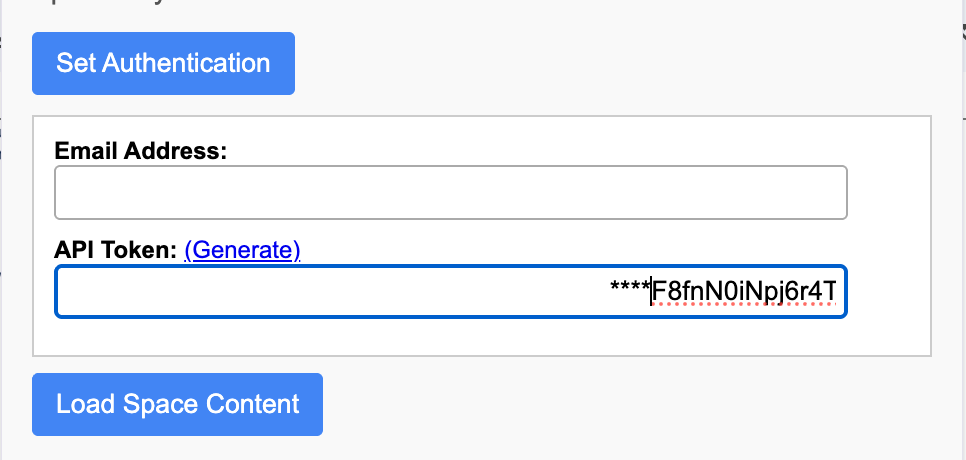
- Go to the Atlassian API Tokens page.
- Click the blue button that says Create API token.
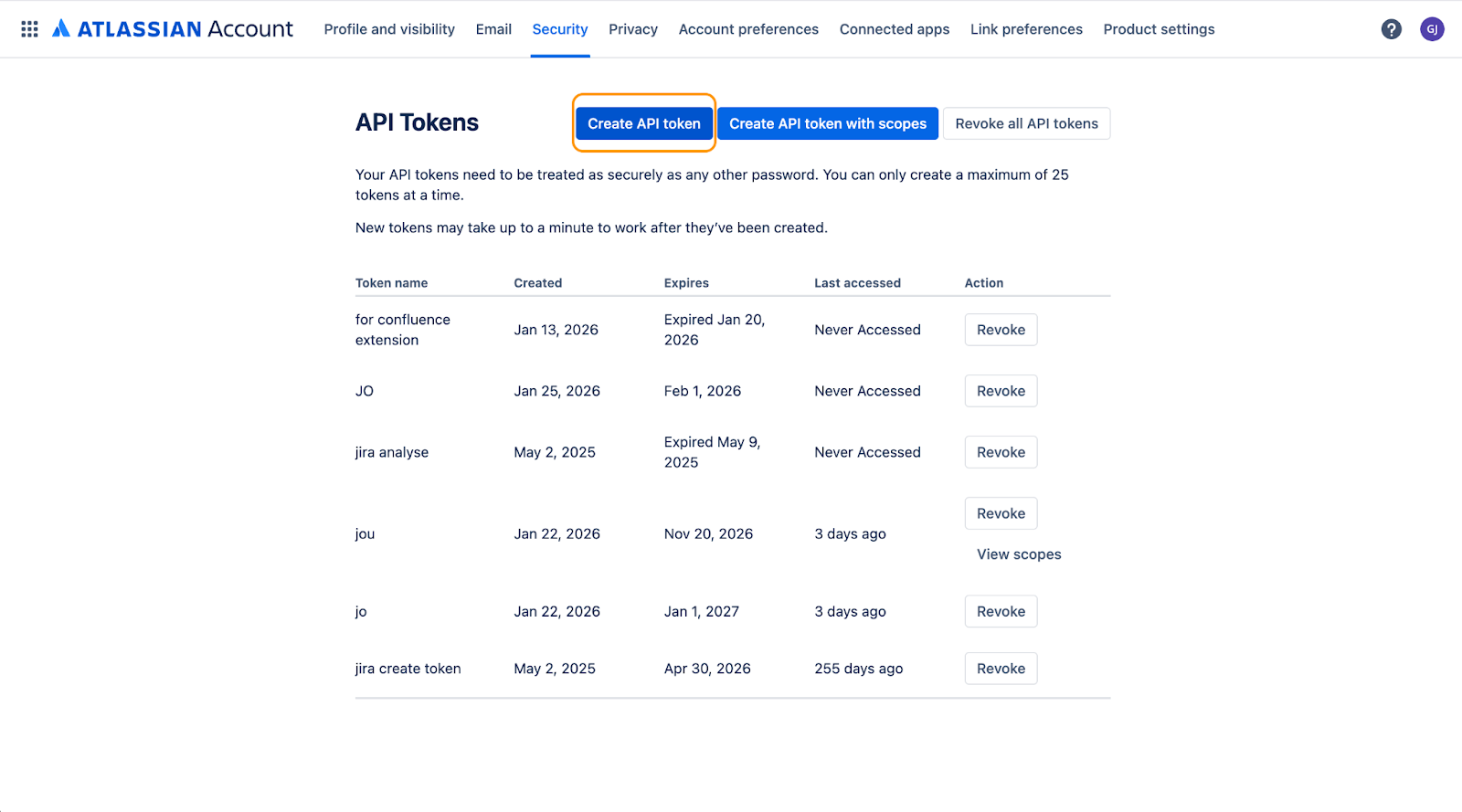
- Name it something simple (like “Downloader”) and click Create.
- Click Copy to grab the long token code.
- Go back to the extension and paste that code into the “API Token” box, along with your email address in the email address box.
Step 3: Choose What to Download (The Two Options)
This is where you decide if you want the whole folder or just one specific section.
- Navigate to the Confluence page you want to start from.
- Click the extension icon.
- Look at the Dropdown Menu right under the Space Key. You have two choices:
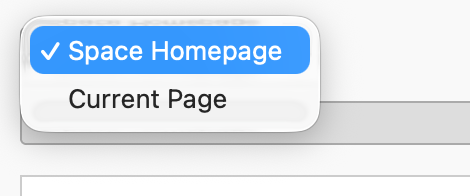
- Option A: Space Homepage (The “All” Option)
Select this if you want to see every document in the entire workspace. It’s great for backing up everything.
Select this if you only want to download the page you are currently looking at (and any pages inside it). This is faster and less cluttered.
- Option A: Space Homepage (The “All” Option)
Step 4: Select and Save
Once you have made your choice in Step 3, click the Load Space Content button, which will load all the pages in the space. 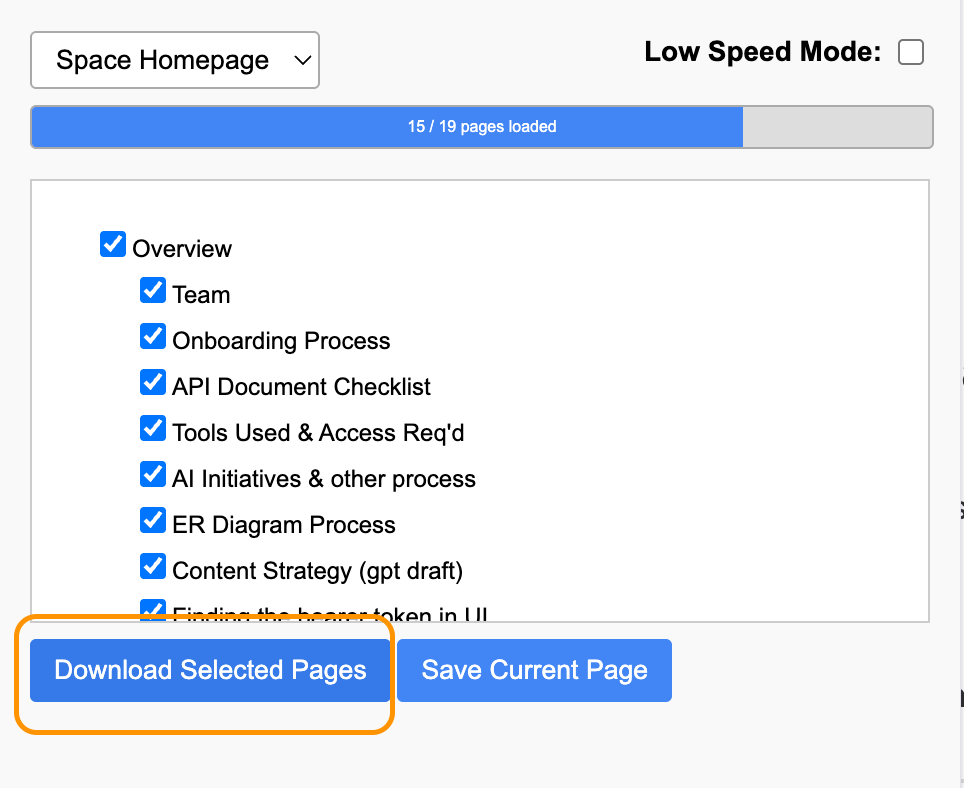
- To download a specific list: Check the boxes for the pages you want in the list, then click the blue Download Selected Pages button.
- To download ONLY the page you are viewing: You can skip the list and just click the Save Current Page button on the right.
That’s it!
Your computer will now ask where to save the files. You now have clean, text-only versions of your documents that you can use anywhere!